0 upload(s) last 24 hrs|1 connected user
Language      
Français Français AnglaisEnglish webmailWebmail HomeHome


Comment Utiliser ONDATAPERF


How to use ONDATAPERF ?


Introduction


ONDATAPERF is a web based application.

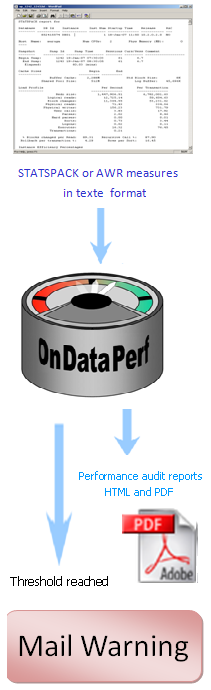
It processes plain-text statspack or AWR output and generates a performance analysis report.

Snapshots must be taken at a regular interval.

A typical use of ONDATAPERF is 24 snaps. Each snap is taken at an hour interval.

ONDATAPERF can process a capture with only one report, but there’s no use in doing that.

We can’t make charts with one snap.

ONDATAPERF can process captures with more than 50 snaps, but the performance analysis report become unreadable.

A Step-by-Step procedure


ONDATAPERF has designed a 5 steps procedure.

Follow the procedure to find out how it works.


1) Capture tools installation (Statspack, AWR)

2) Schedule snaps ( statspack or AWR)

3) Generate many plain-text statspack or AWR outputs and zip them into a file.

4) Login into www.ondatafine.com with your username and password et upload the zip file.

5) Get the ONDATAPERF performance analysis report


1) Capture tools installation (statspack, AWR)


If the tools are already installed goto the next step.


a) Statspack installation


Run a « spcreate » after logon as « sqlplus  / sysdba


For more information about « Statspack Installation » please see the following Metalink Note


 “Installing and Configuring StatsPack Package Note:149113.1  NOTE METALINK STATSPACK


Snapshots can be collected a various levels, each increasing level collecting a greater amount of information about the database


Statspack level 0 : This level captures general statistics

Statspack level 5 : This level captures general statistics + SQL

Statspack level 6 : This level captures general statistics + SQL + capturing SQL plan and SQL plan usage

Statspack level 7 : This level captures general statistics + SQL + capturing SQL plan and SQL plan usage + segment level statistics

Statspack level 10 : This level captures general statistics + SQL + capturing SQL plan and SQL plan usage + segment level statistics + Child Latch statistics


A statspack with a level 7 is strongly recommended


b) AWR ( no installation required)


To get started with the AWR, nothing needs to be installed other than the Oracle10g or Oracle 11g.

AWR collects data without running any script


These collections are done every hour.

DBA_HIST_SNAPSHOT displays information about these collections in the Workload Repository.

The interval can be modified with the package DBMS_WORKLOAD_REPOSITORY.MODIFY_SNAPSHOT_SETTINGS

c) utlbstat, utlestat


Obsolete but not supported in ONDATAPERF

 2) Schedule many captures at a regular interval


a)  Oracle only : Use the dbms_job


sample  : Run statspack snapshot every 30 minutes

SQL> execute dbms_job.submit(:jobno, 'statspack.snap;',
trunc(sysdate+1/48,'HH'), 'trunc(SYSDATE+1/48,''HH'')', TRUE, :instno);

Don’t forget to set the parameter job_queue_processes.


b) UNIX : Please use the crontab


c) Windows : Create a scheduled task


3) Generated plain-text statspack or AWR outputs and zip them into a file.


Les snaps created by Statspack ou AWR are snapshots taken every hour.

Reports between the snap n and n+1 must be generated


IT IS STRONGLY RECOMMENED TO RUN ONDATAPERF SCRIPT


On UNIX


download spawr.ksh


On all platforms


These scripts are UNIX and Windows compatible.

It generates the zip file a the end.

The output are correctly numbered.

 download SPONDATAPERF.sql


A similar script for AWR.is available

download AWRONDATAPERF.sql


4) Log into www.ondatafine.com


Utiliser un compte ONDATAPERF


If you are not already registered   Registering

The first 5 Performance Analyse report are free of charge.


You will receive by E-mail a password.


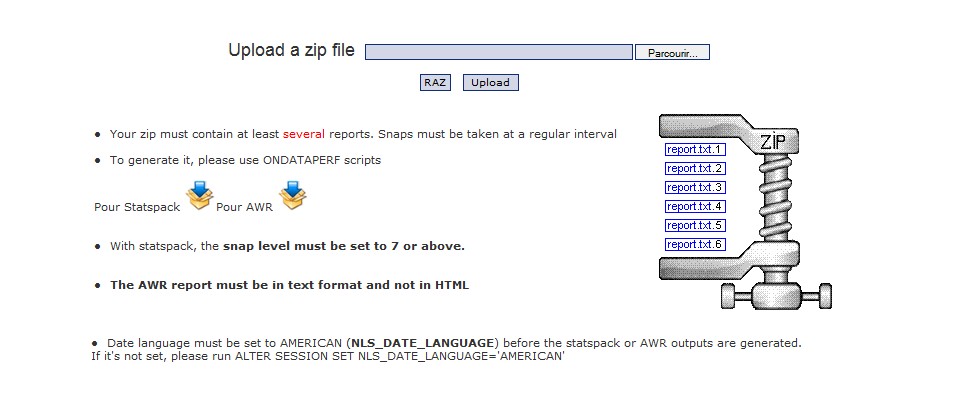
Click on Upload & Analyse.


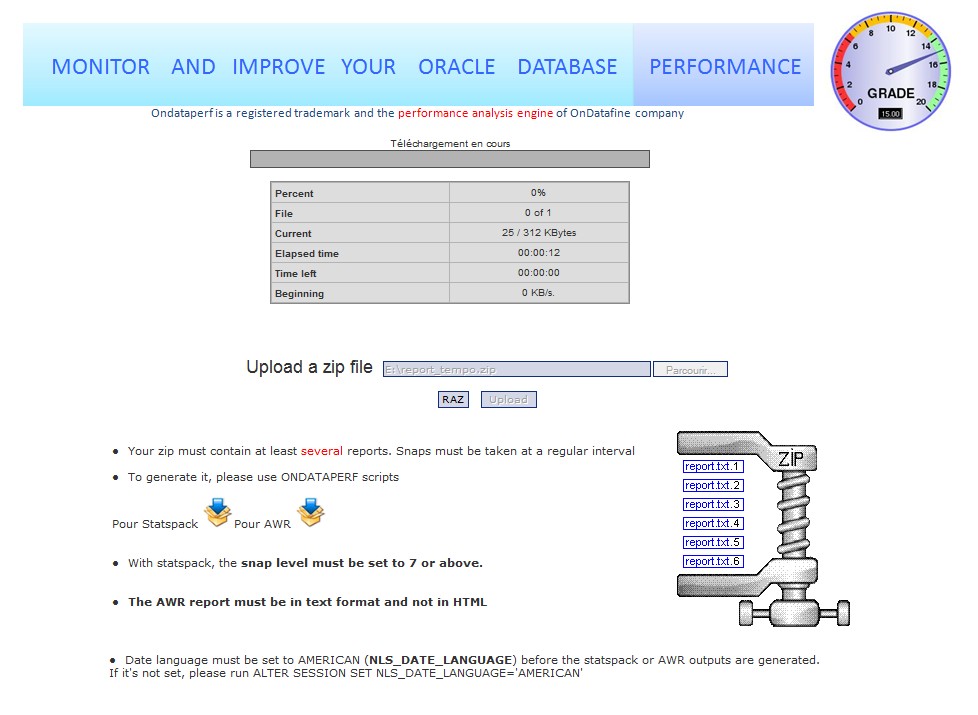
Choose the zip file to upload


When the zip file is uploaded.


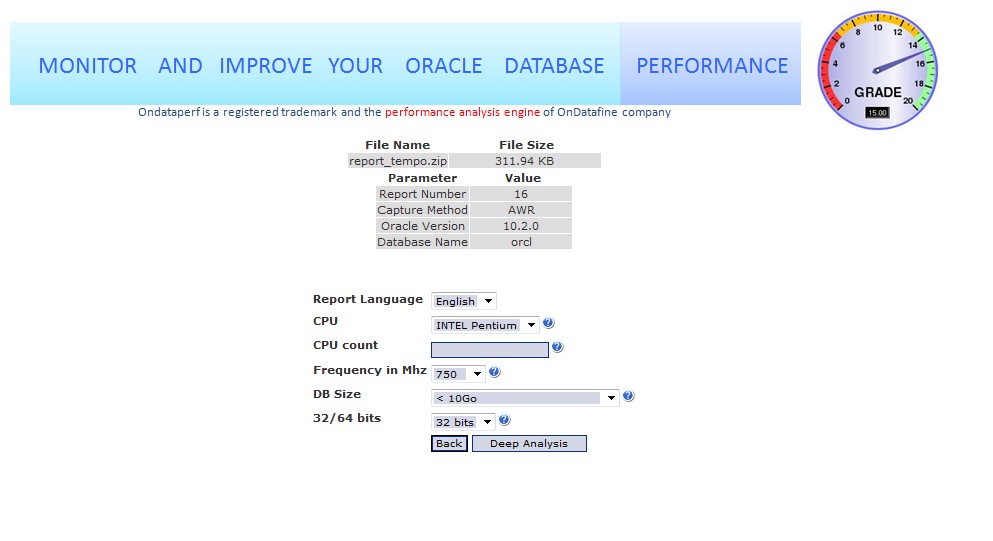
ONDATAPERF make a first analysis


You have to choose the report language, the frequency, the processor, and the database volume.


If you click on the monitoring button, you will get evaluation notes (IO, SQL, OS, Net, Instance).


The click « Deep Analysis » button will generate a PDF or HTML report with accurate information about the database.

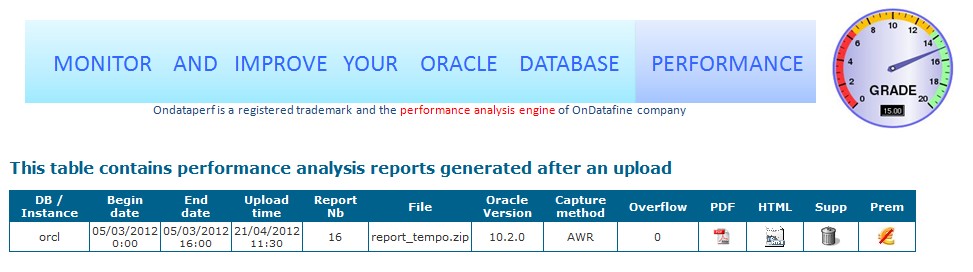
5) Get the Performance analysis report


Click on  "My ONDATAPERF reports", you will get format HTML ou PDF


    © Copyright ONDATAFINE 2007 All rights reserved
Support | Company | Contact us
Annuaire francophone NEToo